⚡ Wireless Desktop PC Power Button Switch
Remote Boot Control for Game Room & Gaming PC Builds
Important: This device is for DESKTOP computers only, not laptops or all-in-one PCs. Basic PC assembly knowledge is required for installation. Always disconnect all power before wiring, and your motherboard must remain electrified in standby (enable this in BIOS/UEFI power settings) for the button to work.✨ FeaturesWireless Remote Trigger
Battery-powered transmitter button works up to 10 meters from the receiver, letting you power on your PC from across the room.
Decorative Gaming Style
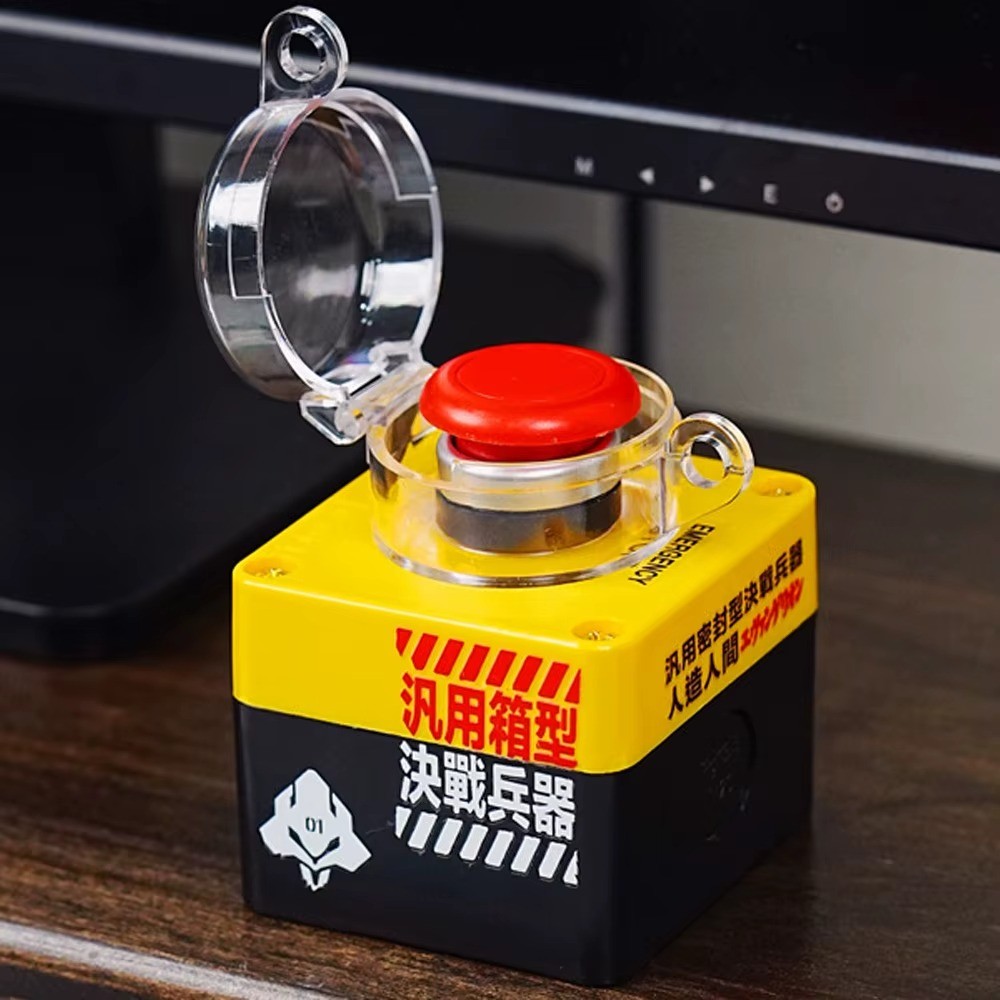
Bold yellow and black industrial-style housing with a glowing red mushroom button, perfect for a gaming setup or game room decor.
Long-Lasting Battery
The transmitter's installed battery can last years, and is easily replaceable when needed.
Simple Two-Part Setup
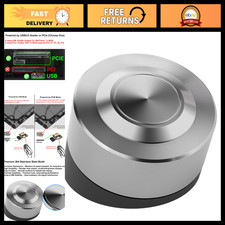
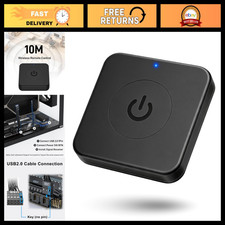
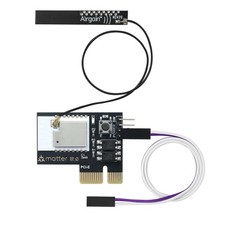
Includes a wireless transmitter button and a signal receiver that connects directly to your motherboard's POWERSW jumper and a USB 9-pin power source.
📦 Package Contents
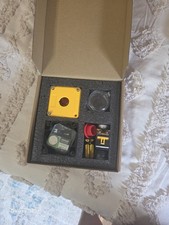
1x Wireless Button Transmitter (battery installed)
1x Signal Receiver with connection wires
📋 SpecificationsButton Size7 x 7 x 9.6 cmNet Weight0.2 kgEffective Wireless Range10 SourceUSB 9-Pin (receiver), Battery (transmitter)CompatibilityDesktop PC motherboards onlyInstallation LevelIntermediate, PC assembly experience recommended🖼️ Product Images❓ FAQQ: Will this work with any desktop PC?
A: It works with standard desktop motherboards that have a POWERSW jumper and USB 9-pin header. It does not work with laptops or all-in-one computers.
Q: How do I know the wiring is correct?
A: Press the transmitter button; if the PC boots normally, the POWERSW jumper wiring is correct. A lit red indicator on the receiver confirms correct USB power wiring.
Q: What if the button doesn't respond?
A: The receiver may need to be re-paired with the transmitter. Open the receiver box, follow the reset procedure on the circuit board until you hear a click confirming the pairing.
Q: My motherboard won't boot even with correct wiring?
A: Check your BIOS power management settings and enable USB wake-up support, as the motherboard must stay electrified in standby for the receiver to function.