CD DVD Drive:This external dvd drive not only reads CDs and DVDs, but can also be used as a USB hub. Including 1*USB 2.0 Port, 1* USB 3.0 Port, 1*Type C Port, 1*SD Card Slot.The USB Hub makes it easy to connect the mouse, keyboard and other USB devices. You can also use the card reader function to transfer your photos, videos or data to PC.2.High-Speed USB3.0/Type C DVD Player for Laptop: The portable CD DVD drive utilizes USB 3.0 technology and is backward compatible with USB 2.0. It supports data transfer rates up to 5Gbps. The cd/dvd drive offers Max 8x DVD Read Speed and Max 24x CD Read speed, faster than you expected. External CD DVD Drive for Laptop USB C Portable CD/DVD +/-RW Burner DVD Player for Laptop with SD Card Reader USB 3.0 Type C Hub Compatible with Laptop PC Windows Linux
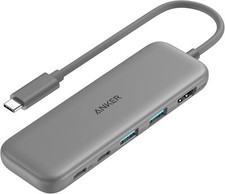
CD DVD Drive:This external dvd drive not only reads CDs and DVDs, but can also be used as a USB hub. Including 1*USB 2.0 Port, 1* USB 3.0 Port, 1*Type C Port, 1*SD Card Slot.The USB Hub makes it easy to connect the mouse, keyboard and other USB devices. You can also use the card reader function to transfer your photos, videos or data to PC.
2.High-Speed USB3.0/Type C DVD Player for Laptop: The portable CD DVD drive utilizes USB 3.0 technology and is backward compatible with USB 2.0. It supports data transfer rates up to 5Gbps. The cd/dvd drive offers Max 8x DVD Read Speed and Max 24x CD Read speed, faster than you expected.
3.Widely Compatible:This external cd drive supports Windows 11/10/8/7, Linux, Mac OS and so on. (NOT SUPPORT:TV/Car/Tablet/Smartphone/Blu Ray Disc/Chromebook/Windows Surface.) And support for reading and writing CD±R/RW, DVD±R/RW, CD-ROM, DVD-RAM, VCD, and SVCD.
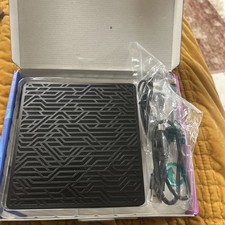
4.Compact and Portable: Portable CD DVD drive with USB A + USB 3.0 ports. Built-in cable storage allows for more organization in storing products. And with a slim and portable design. Whether you are traveling or working at home, it is the ideal partner.
5.Plug and Play: This CD DVD drive converter for laptop, no need to install software, plug and play! Simply connect the USB 3.0/USB A to your laptop or computer and the CD DVD burner drive will start working. NOTE: The cable length is 9.8 to use this external CD/DVD drive?
How to Use it on Windows OS: 1. Take out the USB A/C data cable built into the back of the drive. 2. Plug the USB A or USB C connector into your computer's USB port instead of a USB hub. 3. Your computer will recognize the drive. 4. Set the region code to Number 1 to play US or CA DVDs (CDs do not have region code). 5. Insert your CDs or DVDs. 6. Use a media player (such as Windows Media Player, VLC player, etc.), burning, or ripping software to play, burn, or digitize your discs.
Play CDs & DVDs on Windows OS: You can use Windows media player software to play audio CDs and data DVDs (Windows 11 needs a network). If you want to play video/movie DVDs, download the free VideoLAN VLC player from VLC's official site, launch the VLC media player, click on "Media" in the top menu, select "Open Disc...", ensure "DVD" is selected, then click "Play." If you want to use another media player to play video DVDs, please set the region code before playing, scroll down to check the region code instructions.
Best CD & DVD Burning/Ripping Software on Windows OS: Free audio CDs burning software (Windows Media Player, CDBurnerXP and ImgBurn); Free audio CD ripping software (Windows Media Player, iTunes, CDex, Exact Audio Copy [EAC]); Free video DVDs burning software (ImgBurn, BurnAware Free, CDBurnerXP, Freemake Video Converter, or HandBrake software); Free video DVD ripping software (HandBrake, MakeMKV, VLC Media Player, Freemake Video Converter)
How to Use it on Mac OS: 1. Open up the Finder > Preferences and ensure "CDs, DVDs, and iPods" have been selected. Also, "External Disks", and "Hard Disks" are selected. 2. Take out the USB A/C data cable located in the back of the drive. 3. Plug the USB A or USB C connector into your Mac USB port instead of a USB hub. 4. Insert your CDs or DVDs. 5. Your Mac will recognize the drive, read the disc and an icon will appear on the desktop. 6. Use a media player (such as Apple Music, iTunes, DVD Player, etc.) ,burning, or ripping software to read, write, or rip the disc.
Play CDs & DVDs on Mac OS: After placing the audio CD into your CD drive, the Apple Music app should automatically open and start playing the CD. If not, you can open the Music app manually and select the CD from the sidebar under “Devices.”. If you prefer, you can use VLC Media Player. For video DVDs, Open VLC Media Player, go to “File” > “Open Disc…” or simply drag the DVD icon into the VLC window. VLC will handle most DVD formats and regions.
Best CD & DVD Burning/Ripping App on Mac OS: Free audio CDs burning software (Apple Music, old iTunes, Burn, Express Burn); Free audio CD ripping software (Apple Music, old iTunes, X Lossless Decoder, HandBrake, Audacity); Free video DVDs burning software (Burn, HandBrake, iDVD (Legacy), DVDStyler, iDVD [for old mac]); Free video DVD ripping software (MakeMKV, HandBrake with VLC - Use VLC to read the DVD, and HandBrake to convert and rip it to your desired format).
Mac OS Includes a Built-in Burning Function: Connect the external optical drive, insert a blank disc, then click 'File' in the top menu and select 'New Burn Folder.' Drag the files you want to burn into this folder, click 'Burn to Disc,' and eject the disc when finished. Note that Mac OS only supports burning blank discs, and each disc can be burned only once.
What to do if your Windows/Mac computer doesn't recognize the optical drive?
For Windows laptop PC: After plugging the data cable (located at the bottom of the drive) into your Windows computer, you should see the "DVD RW Drive" icon in "Windows Explorer" (This PC). If not, please try the following suggestions:
Check external connections: Use the Type A and Type C cables on the back (bottom) of the optical drive to connect your computer's USB port instead of a USB hub. This drive also comes with a power supply cable (charging cable). Please connect it to a 5V power adapter or power bank, which can help eliminate any issues related to insufficient power.
Try different USB: Move the data cable to different USB ports on your computer.
Reinstall the driver: 1. Right-click the Windows Start Button in the lower left corner of the screen, or press the Windows Logo + X key combination on the keyboard, from the list, and click to select Device Manager. 2. Click View. 3. Click Show Hidden Devices. 4. Fine this DVD/CD-ROM drive or similar name. 5. Right-click and select Uninstall. 6. Reboot your computer and replug the external drive, Windows will detect the drive and then reinstall it.
For Windows 11/10, please make sure a network connection and a media player software (Such as Windows media player for audio CDs, VLC player for video DVDs)
Reach out to us for a Driver troubleshooting tool, the download link is not allowed here.
For Mac laptop PC: After plugging the data cable (located at the bottom of the drive) into your MacBook, iMac, Mac Pro/Studio, please insert your CDs or DVDs, then you can see the icon on the desktop. If not, please try the following suggestions:
The Mac OS computer will not display the device icon until the disc is placed in the optical drive and the disc is read successfully.
Please connect it to a 5V power adapter or power bank, which can help eliminate any issues related to insufficient power. You need to connect the external CD/DVD drive to the computer first, and then connect the power supply to the external CD/DVD drive, otherwise the Apple computer will not recognize the external CD/DVD External CD/DVD Drive
Material: Plastic
Port: USB 3.0
Reading speed: DVD-ROM 8x; CD-ROM 24x
Burning speed: DVD-R, DVD+R 8X; DVD-RW 4X; CD-R 24x
Supported disc formats: DVD-RAM, DVD-R, DVD-RW, DVD+R, DVD+RW, CD-R, CD-RW, CD-ROM
Note
1. Not compatible with Chromebook, TV, tablet, iPad, mobile phone, projector, truck, or car. Windows 11 requires a media player and Included:
1 x External CD/DVD Drive
1 x Micro SD Adapter
1 x USB+Type-C Cable
1 x User Manual
Item SpecificsReadable Format CD-R,CD-ROM,CD-RW,DVD+ R,DVD-R,DVD-RAM,DVD-ROM,DVD-RWColor BlackPorts USB 3.0MPN Does Not ApplyMaterial Plastic ABSWritable Format CD-R,CD-RW,DVD+ R,DVD+ RW,DVD-R,DVD-RWBrand UnbrandedSupported System For Windows 11/10/8/7, Linux, Mac OS and so onType External DriveModel External CD/DVD DriveWrite Speed 24xFeature1 Burning speed DVD-R,DVD+ R 8X; DVD-RW 4X; CD-R 24xInterface USB,USB-CCompatible With Mac,Laptop,PCFeatures USB PortManufacturer Warranty 1 Year
Payment
You can checkout and pay immediately after the sale ends or you complete the purchases. If you need an invoice sent to you by Email, please contact us.
Shipping
2.We will ship out your orderwithin 2 business daysafter receiving your verified payment (Excluding Weekends and Public Holidays)!
Returns
2.Please Kindly contact us for the RMA No.and address before returning the item back.
Contact Us
1. Please contact us if you are not satisfied with the item after receive it. Just contact us using the " Ask the seller a question" link on microsoft="" style="font-style: normal; font-variant-ligatures: normal; font-variant-caps: normal; font-weight: 400; font-size: medium; line-height: normal; font-family: " open="" sans",="" 微软雅黑,="" "microsoft="" yahei",="" 微軟正黑體,="" jhenghei",="" arial,="" helvetica,="" sans-serif,="" verdana;"="">2.All replies will be sent to your email, if you don't get response within 1-2 business days, pls check your My messages' in case your email provider has an overly-aggressive spam filterblocking 's emails. Please email us AGAIN.Thanks
DESCRIPTIONPAYMENTSHIPPINGRETURN POLICYCONTACT US Hot Item 10 Layer 30 Pairs Shoes Cabinet Storage Organizer Shoe Rack Dustproof Standing USD 25.89 DSLR SLR Camera Shoulder Bag Case Waterproof Shockproof For Canon Nikon EOS Sony USD 13.29 Bluetooth Car FM Transmitter MP3 Player Handsfree Radio Adapter PD+QC3.0 Charger USD 9.49 Bluetooth Headset 5.3 TWS Wireless Earphones Earbuds Headphones Stereo Ear Hook USD 17.39 Trucker Wireless Bluetooth Headset with Mic Noise Cancelling for Cell Phones PC USD 21.84 New List Item Mpow Wireless Bluetooth Headset Air Conduction Headphones Noise Reduction Earbud USD 18.99 Professional Men Hair Clippers Trimmer Set Electric Cordless Shaver Barber Kit USD 23.74 WiFi 4K Camera Camcorder 1080P Body Police Cam Audio Video DVR Night Vision Cam USD 26.99 Electric Hand Therapy Massager 3 modes 5 heat Cordless Pain Relief For Men Women USD 29.34 Professional Hair Beard Clippers Trimmer Rechargeable Men Electric Razor Shavers USD 40.99 External CD DVD Drive for Laptop USB C Portable CD/DVD +/-RW Burner DVD Player for Laptop with SD Card Reader USB 3.0 Type C Hub Compatible with Laptop PC Windows Linux
CD DVD Drive:This external dvd drive not only reads CDs and DVDs, but can also be used as a USB hub. Including 1*USB 2.0 Port, 1* USB 3.0 Port, 1*Type C Port, 1*SD Card Slot.The USB Hub makes it easy to connect the mouse, keyboard and other USB devices. You can also use the card reader function to transfer your photos, videos or data to PC.
2.High-Speed USB3.0/Type C DVD Player for Laptop: The portable CD DVD drive utilizes USB 3.0 technology and is backward compatible with USB 2.0. It supports data transfer rates up to 5Gbps. The cd/dvd drive offers Max 8x DVD Read Speed and Max 24x CD Read speed, faster than you expected.
3.Widely Compatible:This external cd drive supports Windows 11/10/8/7, Linux, Mac OS and so on. (NOT SUPPORT:TV/Car/Tablet/Smartphone/Blu Ray Disc/Chromebook/Windows Surface.) And support for reading and writing CD±R/RW, DVD±R/RW, CD-ROM, DVD-RAM, VCD, and SVCD.
4.Compact and Portable: Portable CD DVD drive with USB A + USB 3.0 ports. Built-in cable storage allows for more organization in storing products. And with a slim and portable design. Whether you are traveling or working at home, it is the ideal partner.
5.Plug and Play: This CD DVD drive converter for laptop, no need to install software, plug and play! Simply connect the USB 3.0/USB A to your laptop or computer and the CD DVD burner drive will start working. NOTE: The cable length is 9.8 to use this external CD/DVD drive?
How to Use it on Windows OS: 1. Take out the USB A/C data cable built into the back of the drive. 2. Plug the USB A or USB C connector into your computer's USB port instead of a USB hub. 3. Your computer will recognize the drive. 4. Set the region code to Number 1 to play US or CA DVDs (CDs do not have region code). 5. Insert your CDs or DVDs. 6. Use a media player (such as Windows Media Player, VLC player, etc.), burning, or ripping software to play, burn, or digitize your discs.
Play CDs & DVDs on Windows OS: You can use Windows media player software to play audio CDs and data DVDs (Windows 11 needs a network). If you want to play video/movie DVDs, download the free VideoLAN VLC player from VLC's official site, launch the VLC media player, click on "Media" in the top menu, select "Open Disc...", ensure "DVD" is selected, then click "Play." If you want to use another media player to play video DVDs, please set the region code before playing, scroll down to check the region code instructions.
Best CD & DVD Burning/Ripping Software on Windows OS: Free audio CDs burning software (Windows Media Player, CDBurnerXP and ImgBurn); Free audio CD ripping software (Windows Media Player, iTunes, CDex, Exact Audio Copy [EAC]); Free video DVDs burning software (ImgBurn, BurnAware Free, CDBurnerXP, Freemake Video Converter, or HandBrake software); Free video DVD ripping software (HandBrake, MakeMKV, VLC Media Player, Freemake Video Converter)
How to Use it on Mac OS: 1. Open up the Finder > Preferences and ensure "CDs, DVDs, and iPods" have been selected. Also, "External Disks", and "Hard Disks" are selected. 2. Take out the USB A/C data cable located in the back of the drive. 3. Plug the USB A or USB C connector into your Mac USB port instead of a USB hub. 4. Insert your CDs or DVDs. 5. Your Mac will recognize the drive, read the disc and an icon will appear on the desktop. 6. Use a media player (such as Apple Music, iTunes, DVD Player, etc.) ,burning, or ripping software to read, write, or rip the disc.
Play CDs & DVDs on Mac OS: After placing the audio CD into your CD drive, the Apple Music app should automatically open and start playing the CD. If not, you can open the Music app manually and select the CD from the sidebar under “Devices.”. If you prefer, you can use VLC Media Player. For video DVDs, Open VLC Media Player, go to “File” > “Open Disc…” or simply drag the DVD icon into the VLC window. VLC will handle most DVD formats and regions.
Best CD & DVD Burning/Ripping App on Mac OS: Free audio CDs burning software (Apple Music, old iTunes, Burn, Express Burn); Free audio CD ripping software (Apple Music, old iTunes, X Lossless Decoder, HandBrake, Audacity); Free video DVDs burning software (Burn, HandBrake, iDVD (Legacy), DVDStyler, iDVD [for old mac]); Free video DVD ripping software (MakeMKV, HandBrake with VLC - Use VLC to read the DVD, and HandBrake to convert and rip it to your desired format).
Mac OS Includes a Built-in Burning Function: Connect the external optical drive, insert a blank disc, then click 'File' in the top menu and select 'New Burn Folder.' Drag the files you want to burn into this folder, click 'Burn to Disc,' and eject the disc when finished. Note that Mac OS only supports burning blank discs, and each disc can be burned only once.
What to do if your Windows/Mac computer doesn't recognize the optical drive?
For Windows laptop PC: After plugging the data cable (located at the bottom of the drive) into your Windows computer, you should see the "DVD RW Drive" icon in "Windows Explorer" (This PC). If not, please try the following suggestions:
Check external connections: Use the Type A and Type C cables on the back (bottom) of the optical drive to connect your computer's USB port instead of a USB hub. This drive also comes with a power supply cable (charging cable). Please connect it to a 5V power adapter or power bank, which can help eliminate any issues related to insufficient power.
Try different USB: Move the data cable to different USB ports on your computer.
Reinstall the driver: 1. Right-click the Windows Start Button in the lower left corner of the screen, or press the Windows Logo + X key combination on the keyboard, from the list, and click to select Device Manager. 2. Click View. 3. Click Show Hidden Devices. 4. Fine this DVD/CD-ROM drive or similar name. 5. Right-click and select Uninstall. 6. Reboot your computer and replug the external drive, Windows will detect the drive and then reinstall it.
For Windows 11/10, please make sure a network connection and a media player software (Such as Windows media player for audio CDs, VLC player for video DVDs)
Reach out to us for a Driver troubleshooting tool, the download link is not allowed here.
For Mac laptop PC: After plugging the data cable (located at the bottom of the drive) into your MacBook, iMac, Mac Pro/Studio, please insert your CDs or DVDs, then you can see the icon on the desktop. If not, please try the following suggestions:
The Mac OS computer will not display the device icon until the disc is placed in the optical drive and the disc is read successfully.
Please connect it to a 5V power adapter or power bank, which can help eliminate any issues related to insufficient power. You need to connect the external CD/DVD drive to the computer first, and then connect the power supply to the external CD/DVD drive, otherwise the Apple computer will not recognize the external CD/DVD External CD/DVD Drive
Material: Plastic
Port: USB 3.0
Reading speed: DVD-ROM 8x; CD-ROM 24x
Burning speed: DVD-R, DVD+R 8X; DVD-RW 4X; CD-R 24x
Supported disc formats: DVD-RAM, DVD-R, DVD-RW, DVD+R, DVD+RW, CD-R, CD-RW, CD-ROM
Note
1. Not compatible with Chromebook, TV, tablet, iPad, mobile phone, projector, truck, or car. Windows 11 requires a media player and Included:
1 x External CD/DVD Drive
1 x Micro SD Adapter
1 x USB+Type-C Cable
1 x User Manual
Item SpecificsReadable Format :CD-R,CD-ROM,CD-RW,DVD+ R,DVD-R,DVD-RAM,DVD-ROM,DVD-RWColor :BlackPorts :USB 3.0MPN :Does Not ApplyMaterial :Plastic ABSWritable Format :CD-R,CD-RW,DVD+ R,DVD+ RW,DVD-R,DVD-RWBrand :UnbrandedSupported System :For Windows 11/10/8/7, Linux, Mac OS and so onType :External DriveModel :External CD/DVD DriveWrite Speed :24xFeature1 :Burning speed DVD-R,DVD+ R 8X; DVD-RW 4X; CD-R 24xInterface :USB,USB-CCompatible With :Mac,Laptop,PCFeatures :USB PortManufacturer Warranty :1 Year
PaymentShippingReturnsContact Us
You can checkout and pay immediately after the sale ends or you complete the purchases. If you need an invoice sent to you by Email, please contact us.
2.We will ship out your orderwithin 2 business daysafter receiving your verified payment (Excluding Weekends and Public Holidays)!
2.Please Kindly contact us for the RMA No.and address before returning the item back.
1. Please contact us if you are not satisfied with the item after receive it. Just contact us using the " Ask the seller a question" link on microsoft="" style="font-style: normal; font-variant-ligatures: normal; font-variant-caps: normal; font-weight: 400; font-size: medium; line-height: normal; font-family: " open="" sans",="" 微软雅黑,="" "microsoft="" yahei",="" 微軟正黑體,="" jhenghei",="" arial,="" helvetica,="" sans-serif,="" verdana;"="">2.All replies will be sent to your email, if you don't get response within 1-2 business days, pls check your My messages' in case your email provider has an overly-aggressive spam filterblocking 's emails. Please email us AGAIN.Thanks
All rights reserved.