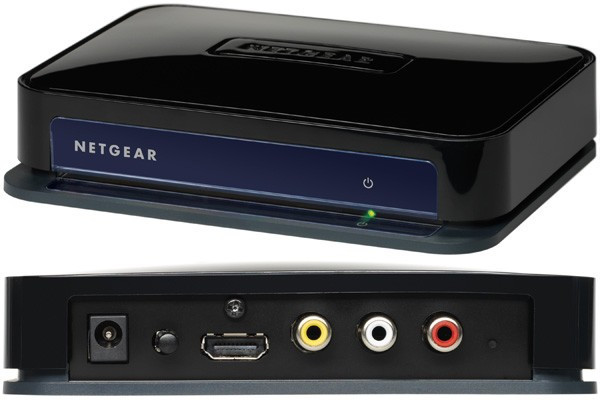
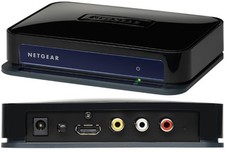
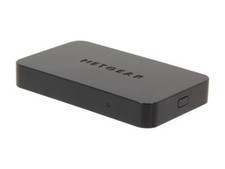
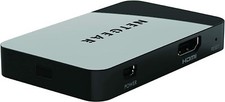
Untitled DocumentNETGEAR Push2TV HD TV Adapter for Intel Wireless Display
Condition : Seller Refurbished
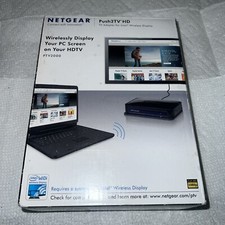
NETGEAR Push2TV Adapters are sold as seller refurbished. The units have been tested and certified for full functionality. Units have minor scuffs, blemishes or other signs of previous use which in no way affect the functionality of the unit. Units ship in damaged, previously-opened retail packaging.
Manufacturer: NETGEAR
Part Number: PTV2000-100NAS
**ONLY FOR USE WITH DEVICES FEATURING INTEL WI-DI TECHNOLOGY**
1. Wireless Display
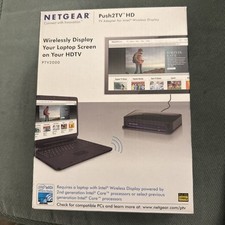
Mirror your laptop, smartphone or tablet and enjoy photos, videos, music or any website on your big screen TV.
2. Better Technology, More Devices
Push2TV Wireless Display Adapter now supports Intel WiDi 3.x and is Miracast™ certified, so you can wirelessly display even more devices on TV.
3. Your Screen Comes to Life
Push2TV supports up to 1080p HD and 5.1 surround sound for an immersive home entertainment experience.
4. Small in size, Big in Performance
The small size of the adapter allows for simple placement and is easy to carry around.
5. Powered by USB
Push2TV can be powered using a USB port on your TV or with the included power adapter that plugs into any electrical outlet.
6. Finding a Compatible Intel WiDi Device
Intel Wireless Display requires a compatible laptop, tablet or smartphone and the Push2TV adapter to wirelessly display the device screen on TV. Learn more on how to find compatible devices below.
STEP 1
Look for the icon when you shop. Intel® Wireless Display requires compatible laptop and TV adapter.
STEP 2
Look for the Intel WiDi Logo on your laptop. If your laptops
supports Intel WiDi you will see the shortcut icon displayed
in one of the three locations below.
Desktop Shortcut
Windows Start Menu
Type Intel Widi in the Windows application search
You can also learn more here.
7. Wi-Fi CERTIFIED Miracast
Push2TV is now Wi-Fi CERTIFIED Miracast™. Miracast is a groundbreaking solution for seamlessly displaying video between devices, without cables or a network connection. Learn more by watching the video below.